

Imagine you operate an expanding digital agency or consult as a service provider. A prospective client clicks your onboarding form. They select "Services Needed: Custom Web Development."
But as they scroll down, they face a barrage of irrelevant fields: “What is your social media budget?” “How many blog posts do you need a month?” “Who is your graphic design lead?”
Suddenly, your professional form feels clumsy, bloated, and generic. The client gets frustrated by the clutter, overthinks their answers, and closes the tab.
What went wrong? Static form fatigue.
When your forms treat every user exactly the same, you lose conversions. If a customer tells you they want Web Development, they should only see questions about web development.
The solution is simple: make your forms respond in real-time. By utilizing the MightyForms Form Builder, you can automatically change, show, or update field values on the fly based on what your user types.
Here is how a dynamic conditional pipeline keeps your intake process sleek, hyper-relevant, and high-converting.
The Scenario: The Adaptive Project Scope (Without the Clutter)
Let’s look at how this works in practice for a growing agency team.
Instead of building ten separate forms for ten different services, you build one master onboarding form. When a lead fills out their contact information, they choose their primary project type.
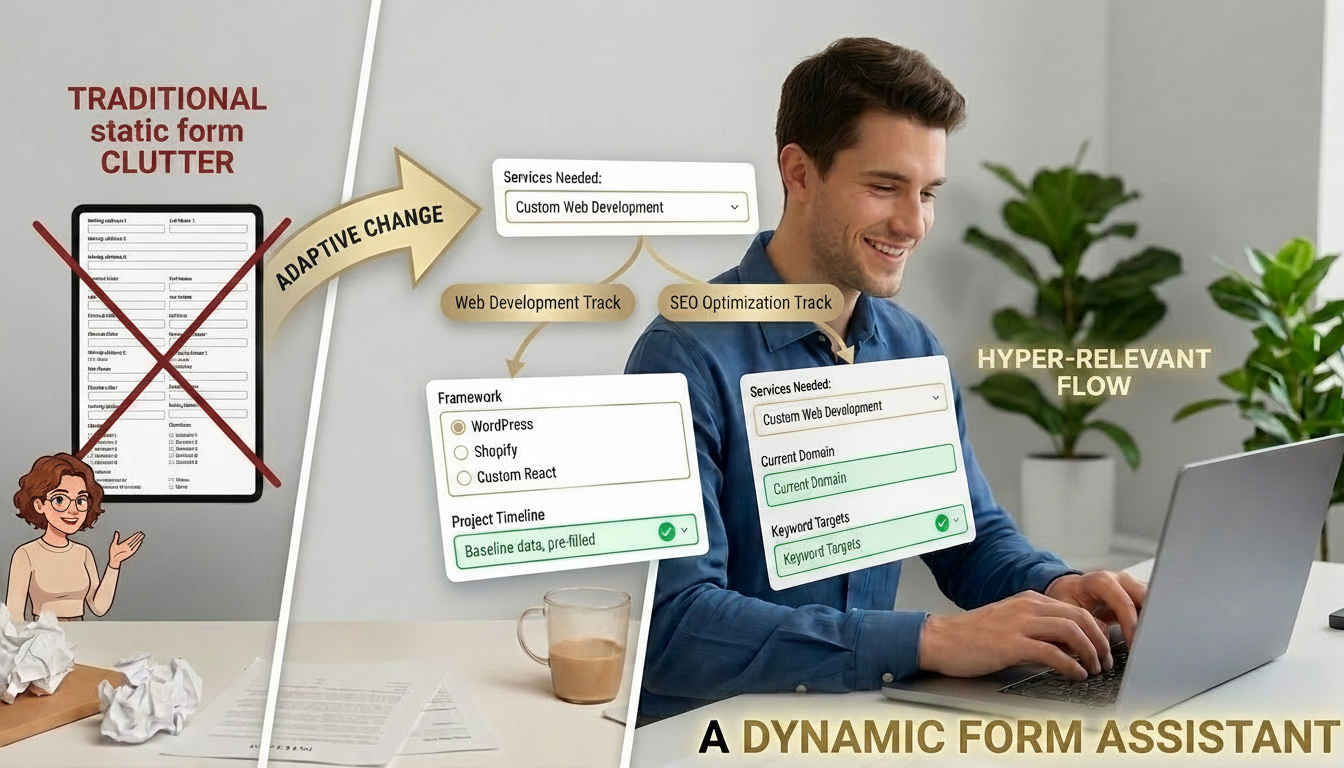
This choice triggers hidden instructions behind the scenes. If they choose "Web Development," your form instantly updates field values - setting a baseline project timeline or shifting a dropdown menu to offer options like WordPress, Shopify, or Custom React Application. If they switch their choice to "SEO Optimization," the form instantly adapts to request their current domain and keyword targets instead.
By setting up native MightyForms features to handle the logic, your form acts like an interactive assistant, asking the right follow-up questions at the exact right moment.
How to Set Up Conditional Field Updates in Under 2 Minutes
You don't need to write complex javascript or know code to make your forms smart. According to the official guide on how to update fields with conditional logic rules, here is the exact workflow to get this running in your account:
1. Open Your Logic Rules: Step 1. Log into app.mightyforms.com and open the form you want to make dynamic. Look at the top right toolbar and click on the Logic Rules icon.
2. Define Your Trigger (IF): Step 2. Click Add New Rule. Give your rule a clear name (e.g., "Web Dev Scope Update"). In the IF section, define your condition. For example: IF "Project Type" is equal to "Web Development".
3. Set Your Action (THEN): Step 3. Move to the THEN section to specify your outcome. Select Update Field Value. Choose the target field you want to modify, select whether you want to insert text, a number, or clear it, and type in your new default value.
4. Save and Activate: Step 4. Click Save Rule. Preview your form to watch the field change automatically the moment your test selection is made.
Real-World Benefits of a Dynamic Pipeline
Upgrading to an automated conditional form strategy directly improves how your team collects and processes incoming leads:
- Drastically Lower Abandonment: Forms that feel short and perfectly tailored have much higher completion rates because users never get bored or confused by irrelevant questions.
- Pre-Qualified Estimates: You can automatically update hidden "estimated cost" or "estimated timeline" fields based on the choices a client selects, allowing you to instantly route high-value leads to senior managers.
- Flawless Internal Routing: Populating custom values based on user selections ensures that when data hits your CRM, it is perfectly labeled and structured for your team without manual cleanup.
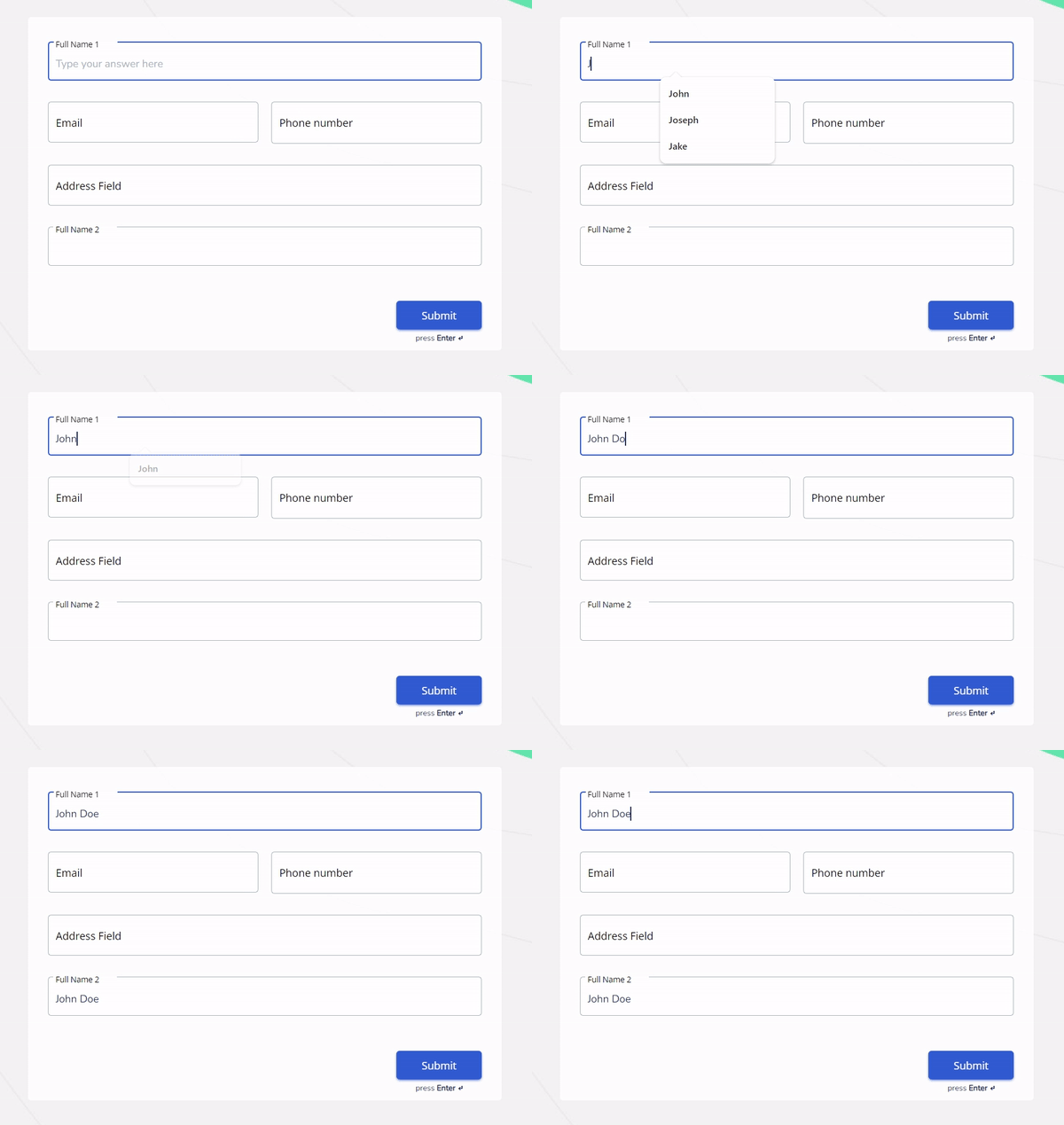
Pro-Tip for Advanced Workflows: You can chain multiple actions to a single trigger! When a client selects a premium service tier, you can use a single rule to Update Field Value to insert a premium price tag, while simultaneously making hidden scheduling fields visible.
Stop Using One-Size-Fits-All Forms
Your business isn't rigid, and your customer interactions shouldn't be either. Never make a prospect skip past questions that don't apply to them.
Head over to app.mightyforms.com to log into your dashboard, open the Logic Rules panel, and start building intelligent, high-converting forms that adapt to your audience in real-time.