
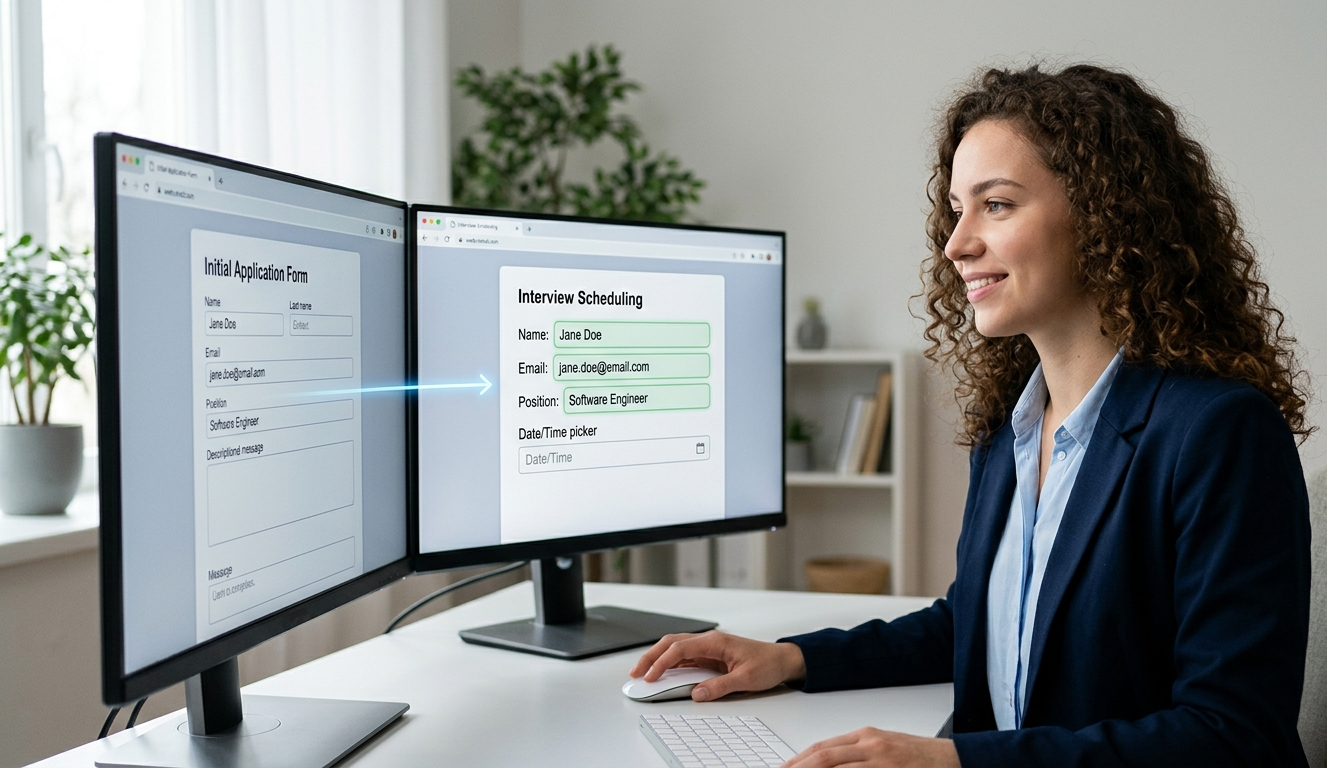
Imagine this: You’ve just spent weeks writing the perfect job description, promoting it on LinkedIn, and filtering through dozens of resumes. Finally, you find a handful of absolute rockstar candidates.
You enthusiastically email them: "We love your profile! Please use this link to schedule your formal technical interview."
Then... silence. Days pass, and that stellar candidate ghosts you.
What went wrong? Form fatigue.
When candidates click your scheduling link, they are often greeted by a blank wall of fields. They have already given you their full name, phone number, email address, and portfolio links in their initial application. Making them type it all out a second time feels repetitive, creates unnecessary friction, and risks typos that could ruin your communication.
Thankfully, there’s an automated way to eliminate this roadblock entirely. By using the MightyForms Form Builder, you can reuse the data from their original job application to automatically build a frictionless, customized interview form.
Here is how creating a continuous data loop with native MightyForms features saves your hiring pipeline.
The Scenario: From Applicant to Interviewee (Without the Typing)
Let's look at how this works in practice for a growing HR team.
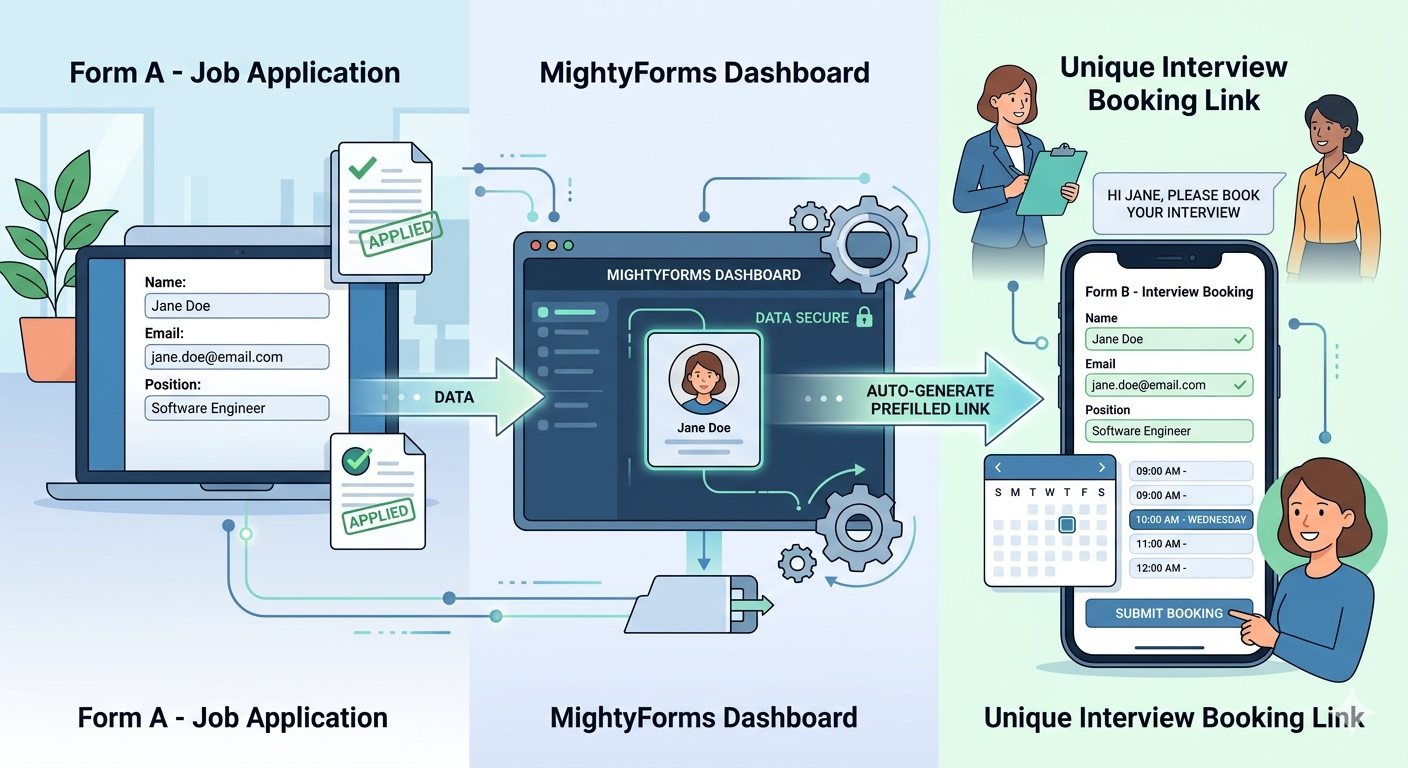
When a candidate applies on your site, they submit Form A (Job Application). Once you review their submission and decide to move forward, you don't send them a generic link to Form B (Interview Booking). Instead, you let MightyForms do the heavy lifting behind the scenes.
Using the data already sitting safely in your MightyForms dashboard, the system generates a unique link specifically for that candidate. When they click it, their name, email, and position applied for are already filled out. All they have to do is pick a time slot and hit submit.
How to Set It Up in Under 2 Minutes
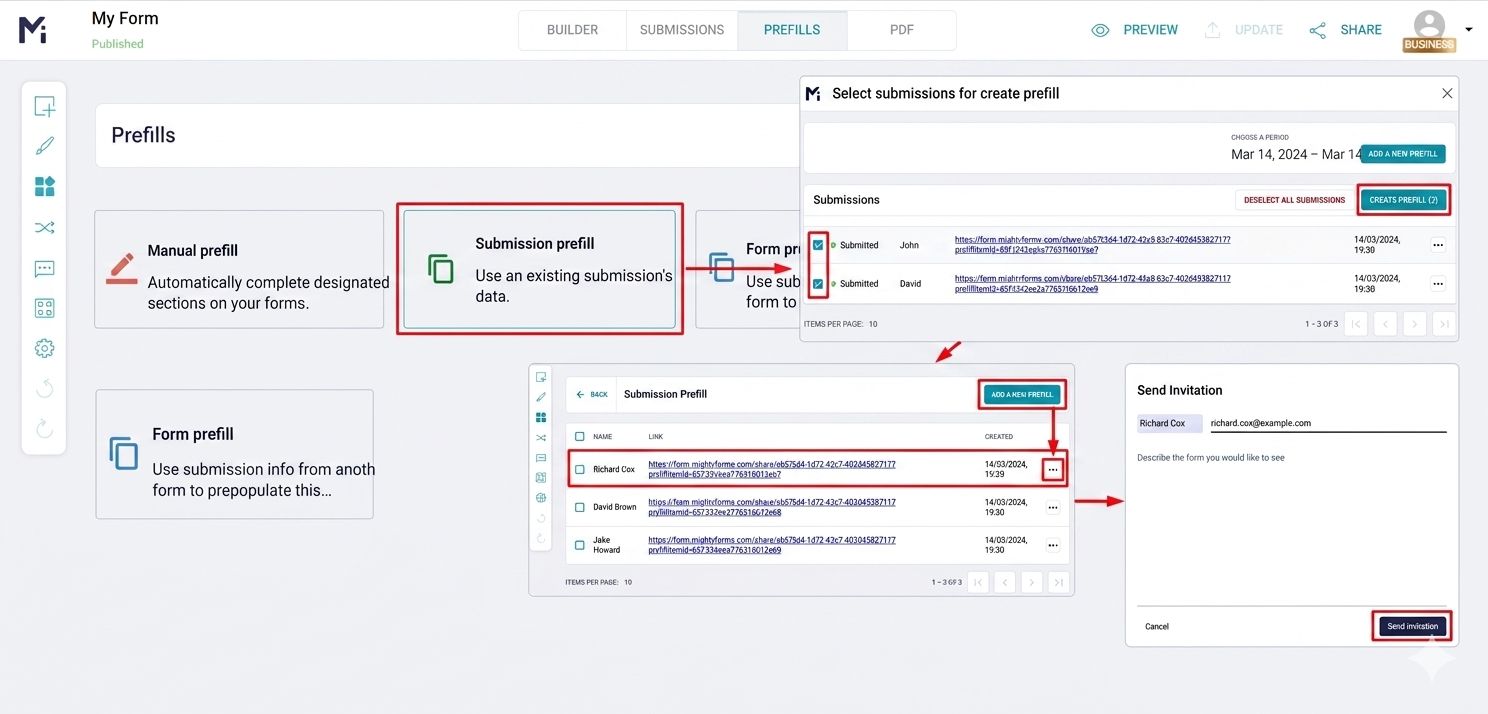
You don't need to be a developer or write complex code to map your forms together. According to the official documentation on how to prefill form fields using submission data, here is the exact workflow to get this running in your account:
1.Open Your Base Form: Step 1.Log into app.mightyforms.com and open your original Job Application Form (where the candidate's data currently lives).
2.Select the Candidate: Step 2.Head over to the Prefills tab in the main settings panel and click Submission Prefill. Hit Add New Prefill to pull up your list of successful applicants, and check the box next to the candidate you want to invite.
3.Generate the Custom Link: Step 3.Click Create Prefill. MightyForms instantly generates a secure, personalized URL tied specifically to that candidate’s historical data.
4.Send the Smart Invitation: Step 4.Click Send Invitation to email the link directly from the app, or manually copy the link to drop into your own personalized email thread.
Real-World Benefits of a Prefilled Pipeline
Pivoting to a prefilled form strategy does more than just look professional - it directly impacts your team's operational efficiency:
- Zero Missing Matches: Because the form pulls the exact email and candidate ID from the first submission, you’ll never accidentally create duplicate or unlinked candidate profiles in your database.
- Flawless Contact Info: A candidate typing quickly on their phone might mistype their phone number on a second form. Prefilling fields eliminates human error.
- Higher Conversion Rates: Shortening the time-to-completion means candidates book their slots immediately rather than "saving it for later" and forgetting.
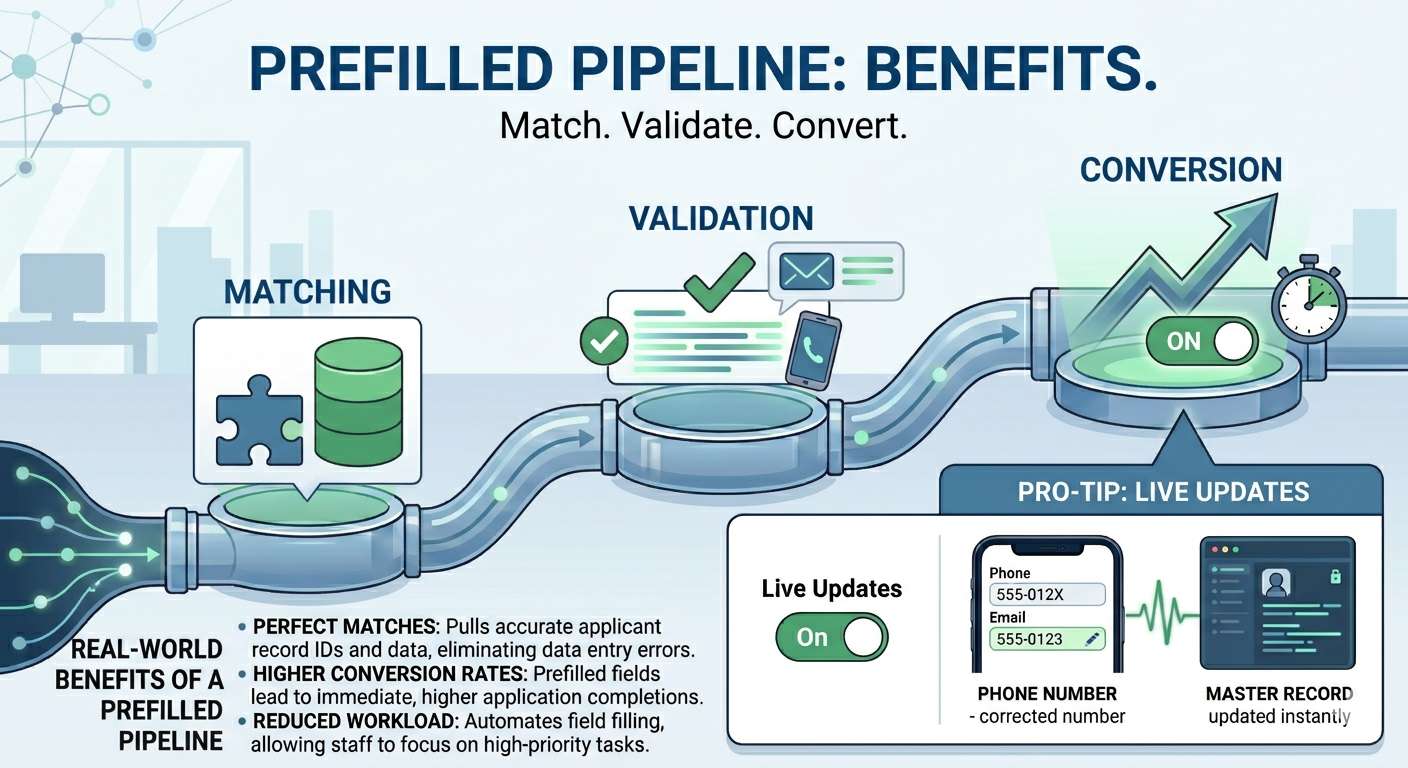
Pro-Tip for HR Teams: In the prefill link settings, enable the "Live Updates" toggle. If a candidate notices they made a typo in their phone number during the initial application, they can fix it on the interview form, and MightyForms will automatically update their master record in your database.
Stop Making Your Audience Repeat Themselves
Whether you are moving a job applicant to an interview, asking an existing client to renew a contract, or sending a follow-up survey to an event attendee, never ask for the same piece of data twice.
Head over to app.mightyforms.com to log into your dashboard, explore the Prefills tab, and start building workflow automations that respect your users' time.