
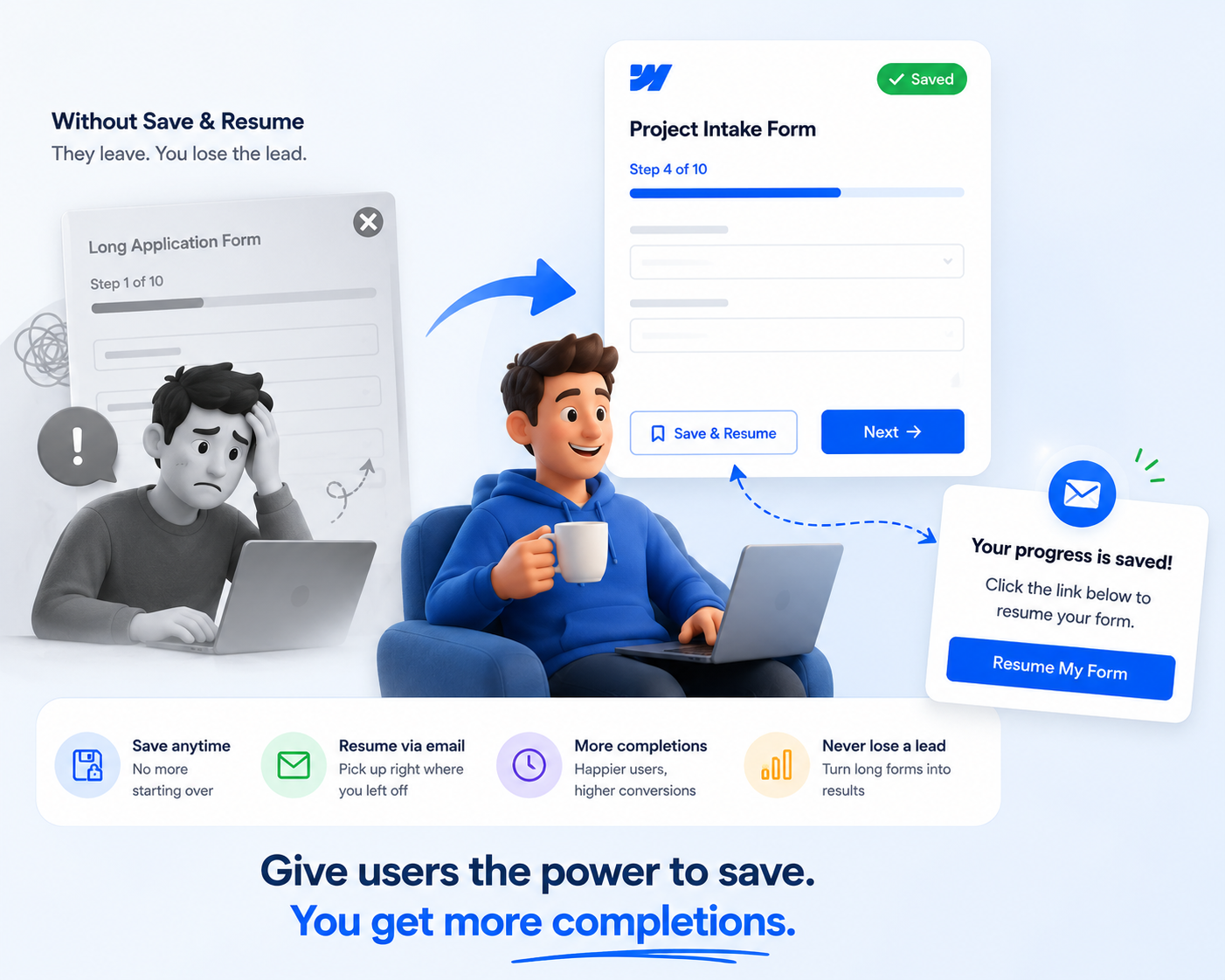
Imagine a client sitting down to fill out a detailed project intake, multi-page application, or complex onboarding questionnaire. They’ve spent fifteen minutes filling out requirements, uploading files, and listing details - and then life happens. Their internet drops, a meeting starts, or they simply get called away.
If returning to your page means starting over from scratch, most users won't try a second time. They abandon the form permanently, and you lose a valuable lead.
Long-form questionnaires are essential for gathering detailed business data, but length creates friction. By activating the Save & Resume feature in MightyForms, you give respondents the power to save their progress at any time and return whenever it’s convenient.
Here is how enabling Save & Resume eliminates submission anxiety, lowers form abandonment, and boosts overall conversion rates.
The Scenario: Frictionless Onboarding for Complex Applications
Let’s look at how this works in practice for financial advisors, real estate agencies, or consulting firms handling multi-step applications.
Instead of forcing prospects to finish a 20-field intake form in a single sitting, you provide a clear "Save & Resume Later" option right inside the form interface.
When a user clicks save, the form automatically generates a unique resume link sent directly to their email address. They can close their browser, gather missing documents or consult with team members, and open the exact same link hours or days later. All their previously entered data, uploaded files, and chosen selections remain intact - allowing them to pick up right where they left off and hit submit.
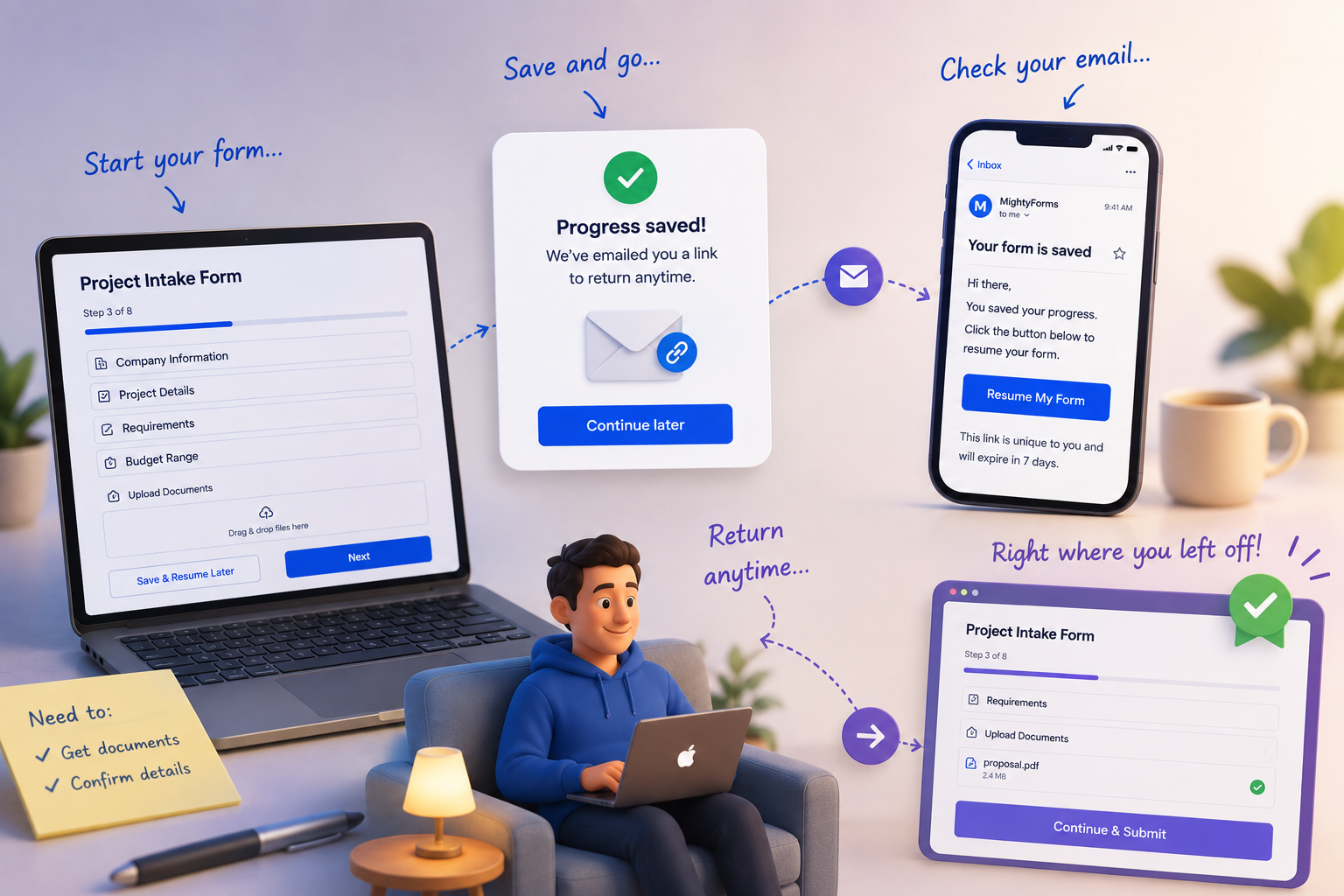
By pairing native MightyForms features with user-friendly workflow options, you ensure high completion rates on even your longest, most detailed forms.
How to Enable Save & Resume in Under 2 Minutes
You don't need complex database engineering or custom user account setups to give respondents progress-saving capabilities. According to the official guide on how to enable Save & Resume for your users, here is the exact step-by-step workflow:
- Open Your Form Settings: Log into app.mightyforms.com and open the multi-page or long-form form you want to update. Look at the left sidebar menu and click on Form Settings.
- Locate Save & Resume: In the settings panel, scroll down to the Submission Settings section to find the Save & Resume toggle switch.
- Toggle On & Configure: Enable the switch. Customize the automated email notification that sends respondents their unique resume link upon clicking save.
- Save and Test: Click Save Settings. Preview your form to see the new "Save" option appear alongside your navigation or submit buttons, ensuring users can now save progress seamlessly.
Real-World Benefits of Progress Saving
Adding Save & Resume to your form strategy yields major operational improvements for your lead collection pipeline:
- Drastic Reduction in Form Abandonment: Eliminates visitor fatigue on multi-step, technical, or document-heavy forms.
- Higher Data Accuracy: Gives users the breathing room to double-check their inputs, verify technical specs, or gather necessary attachments before submitting.
- Automated Follow-Up: Capturing the respondent's email address during the save event gives your team an active touchpoint to follow up if the form remains incomplete.
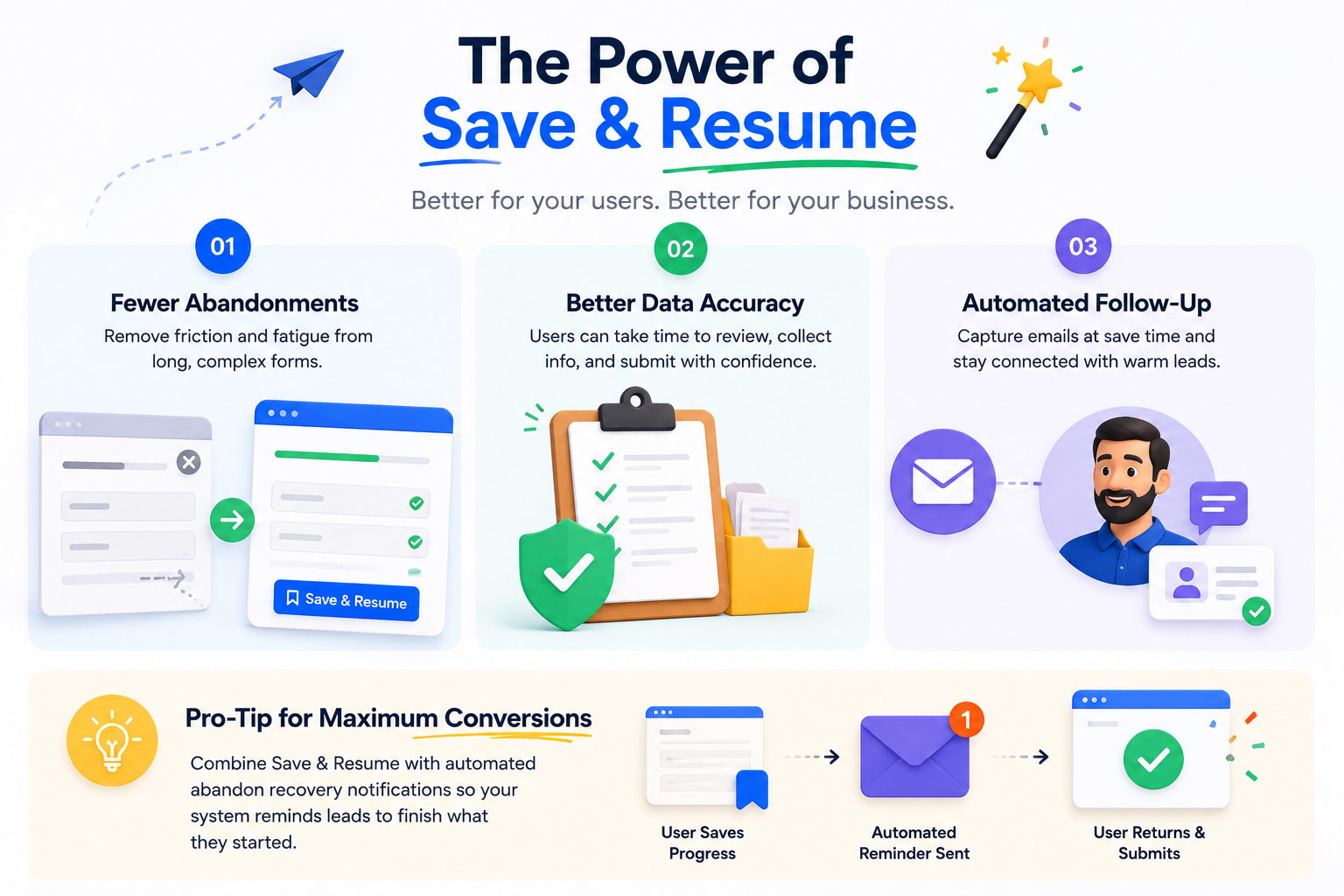
Pro-Tip for Maximum Conversions: Combine Save & Resume with automated abandon recovery notifications so your system automatically reminds leads to finish their saved forms!
Turn Lengthy Intakes into High-Converting Workflows
Don't let long forms scare away your most qualified leads.
Head over to app.mightyforms.com to open your dashboard, select your complex forms, and toggle on Save & Resume today.